- Get link
- X
- Other Apps
Free up phone storage without paying for cloud space: that is the goal of a new Quick Share feature spotted in recent tests. Android phones running low on space will soon let you move your pictures straight to your computer without paying monthly fees. If your device warns you that drive space is full every morning, relief is finally coming.
The short answer is simple. Instead of buying extra storage through monthly cloud plans, Google is turning Quick Share into a fast tool that sends your picture library right to your desktop. You get your free space back on your device in minutes, and your media stays private on your own computer hard drive.
What Is Happening With Quick Share And Your PC?
Running out of space on a modern Smartphone is a headache almost everyone knows. Most free cloud tiers cap out at 15GB, and your daily pictures, large videos, and chat attachments fill that up fast. Once that limit hits, your emails stop arriving and your camera app starts throwing warnings.
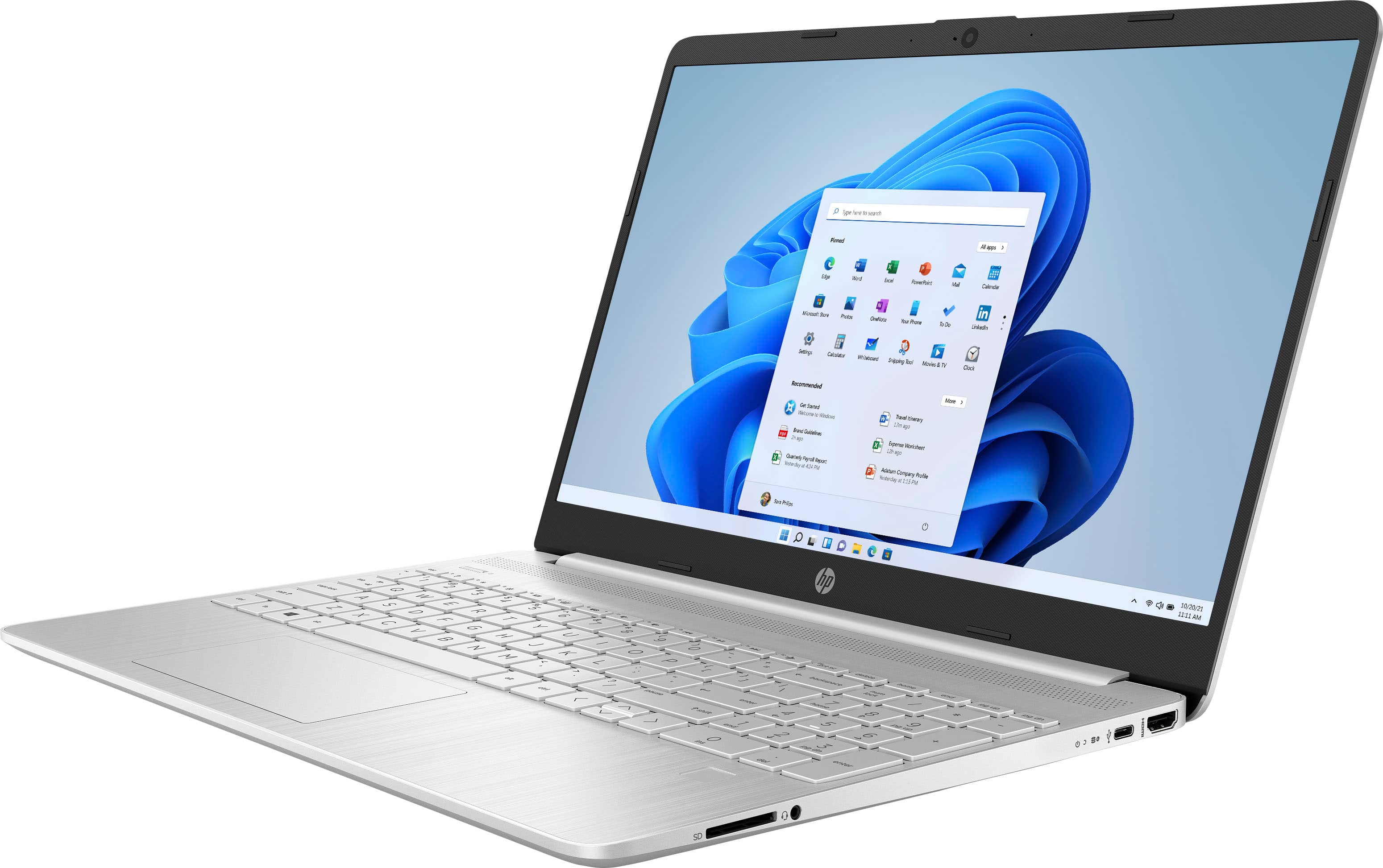
Recent news reveals that Quick Share plans to solve this by adding an automated backup option for your Windows PC. Instead of just beaming one picture at a time to a friend across the room, Quick Share will look for your computer on the same local wireless network. It can copy new shots in the background, keeping your files safe on your personal drive without charging a single penny.
The exact release date is not clear yet from early reports. But code findings show the system is already far along. For millions of people who refuse to pay two or three dollars every month for basic cloud lockers, this upcoming tool gives back total control over their personal files.

Why Free Up Phone Storage Locally Instead Of Buying Cloud Space?
Cloud subscriptions add up quietly. Paying for two or three cloud plans across a family can cost fifty to a hundred dollars every year. What happens if you stop paying? The company freezes your account, cuts off uploads, and makes it hard to download everything in bulk.
Making a local Backup on your home computer protects you from price hikes and internet outages. Your computer drive has hundreds of gigabytes, or even terabytes, waiting to be filled. Moving your heavy camera roll off your handset keeps the system speedy while making sure your memories stay safe behind your own front door.
Sometimes you just want old files out of your way so your device runs like new again. Just like writers who keep trying after hearing no, as seen with these Famous Books Turned Down Before Becoming Massive Hits, finding creative ways around artificial limits always feels great. Taking charge of your own files gives you that exact same peace of mind.
How To Free Up Phone Storage Right Now While You Wait
You do not have to wait for the Quick Share update to roll out to get space back today. You can clean up twenty, thirty, or even fifty gigabytes in twenty minutes by checking a few hidden corners on your device. Let us walk through the most effective steps you can take right now.
Clear Out Chat App Media Caches
Chat apps are the biggest storage thieves on any device. When friends send you short video clips, voice notes, and memes, the app downloads every single file directly onto your chip. Over a year or two, an app like WhatsApp, Telegram, or Messages can easily eat up 25GB of space without showing up in your normal photo albums.
Here is how you clear that out on Android:
- Open WhatsApp and tap the three dots in the top right corner.
- Tap Settings, then choose Storage and data.
- Tap Manage storage at the top of the screen.
- Look at the section titled Larger than 5 MB and delete the heavy videos you never need to watch again.
If you use Telegram, the fix is even faster:
- Open Telegram and tap the menu icon on the left.
- Select Settings, then tap Data and Storage.
- Tap Storage Usage at the top.
- Move the slider for Keep Media down to one month or three days.
- Tap Clear Telegram Cache at the bottom to instantly recover gigabytes of space.
Delete App Cache That Builds Up In The Background
Social media feeds, shopping apps, and web browsers store temporary files every second you scroll. This temporary data is supposed to make apps open faster, but after several weeks, it turns into useless junk that slows your phone down. Clearing this cache will never delete your passwords, saved chats, or game progress.
You can empty app caches on your device in four simple steps:
- Open your device Settings and tap Apps.
- Sort the list by Size to spot the heaviest programs right at the top.
- Tap any big social app like TikTok, Instagram, or Chrome.
- Tap Storage, then tap Clear cache in the bottom corner.
Do not tap Clear data or Clear storage unless you want to log in again from scratch. Stick purely to Clear cache. Doing this across five big social apps often frees up 6GB to 10GB immediately.
Ditch Bloated Apps In Favor Of Lean Alternatives
Look at your home screens and count how many single-purpose tools you have installed. Many people have a separate app for weather, another for unit conversion, another for flight tracking, and another for quick notes. Each individual app takes up 100MB to 300MB, plus background cache.
Switching to modern web shortcuts or using an all-in-one assistant can clean up 5GB in one go. You can bookmark mobile websites on your home screen directly from Chrome. Just tap the three dots in your browser and choose Add to Home screen. The mobile site works just like an app, but takes up zero megabytes of storage on your phone.
For more everyday tech guides that save you time, check out our latest collection of practical smartphone tips and tricks to keep your gear running smoothly.
Empty Your Trash And Recently Deleted Folders
Did you delete two hundred old pictures yesterday, but noticed your storage meter did not move at all? That is because deleted items do not disappear right away. Modern phones move removed pictures into a recycle bin where they sit for thirty days just in case you change your mind.
To wipe them out permanently and get that room back now:
- Open your default Gallery or Google Photos app.
- Tap on Albums or Library at the bottom.
- Tap Trash or Recently Deleted.
- Tap the three dots or the edit button at the top, then choose Empty Trash.
- Confirm your choice to permanently erase those files.
I did this on my own phone last Tuesday and watched my available space jump from 2GB to nearly 14GB instantly. It is the easiest step, yet it is the one people forget most often.
What Should You Do Next?
Start by clearing your chat app caches and emptying your photo trash bin today. Those two steps alone will buy you enough room to take hundreds of fresh photos this weekend without seeing any annoying pop-up warnings.
Keep your eyes peeled for the upcoming Quick Share desktop update as well. Once it lands on your device, set up a simple weekly routine where your phone pushes your latest snapshots straight over to your PC. How much space did you manage to clear from your phone today? Check your storage screen right now and see the difference.
Comments
Post a Comment
hi