- Get link
- X
- Other Apps
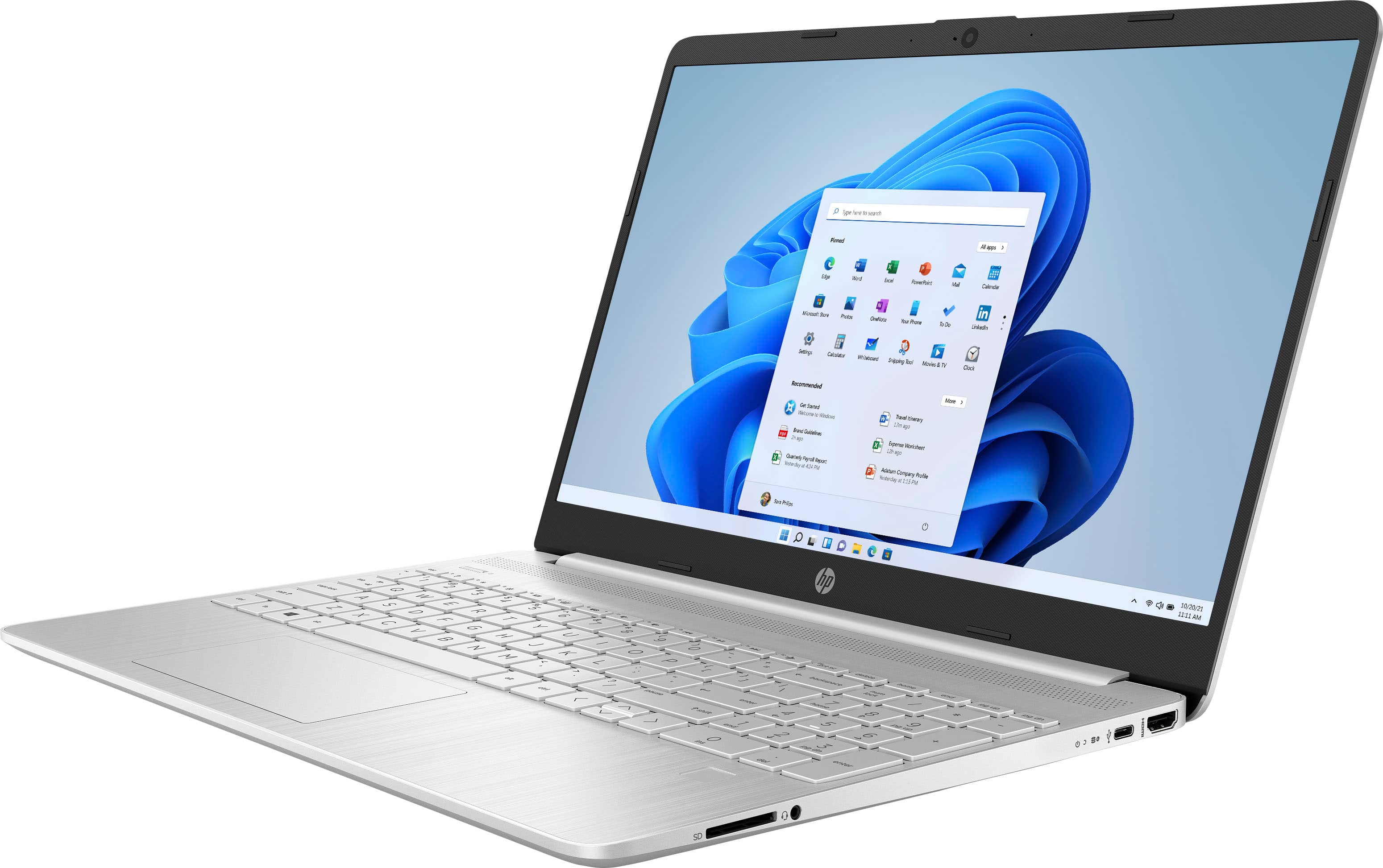
If your laptop feels painfully slow today, your battery might be the real reason why. Many people assume an aging computer needs a clean drive or more memory. Recent tech reports show that a worn battery can force your laptop processor to crawl on purpose.
When a battery gets old, it cannot deliver steady power spikes anymore. To stop your machine from shutting down without warning, the system cuts your processor speed by half or even more. Plugging the laptop into the wall does not always fix this throttle, leaving you with a machine that stutters during simple tasks.
Why a Weak Battery Slows Down Your Machine
Modern laptops pull extra juice from both the wall charger and the battery when you open big apps. If you launch a photo editor or twenty browser tabs, the computer needs a quick burst of energy. A healthy battery handles that burst with ease. An old battery drops voltage fast when pushed too hard.
Hardware makers build safety limits right into the computer chips. If the machine detects a weak power pack, it steps down the clock speed immediately. It wants to keep you safe from sudden black screens. You end up waiting five seconds just to open a text file or a folder.
A friend of mine had this exact issue last week on an older work machine. Typing had a weird delay, and YouTube videos kept dropping frames even on high-speed internet. We ran checks on the storage drive, but the real issue was a worn battery that held only twenty percent of its original charge. Swapping the battery brought the laptop back to full speed within minutes.
Good computer habits go hand in hand with general safety. Just as you protect your software through proper computer security measures, keeping tabs on your physical hardware stops unexpected slowdowns and keeps your work flowing smoothly.

How to Check Your Battery Health on Windows
You do not need to guess if your battery is failing. Windows has a built-in tool that builds a full health report in seconds. You do not need to install extra software to find this information.
Here are the exact steps to see your battery numbers:
- Right-click the Start button in the corner of your taskbar.
- Select Terminal (Admin) or Command Prompt (Admin) from the menu list.
- Type this command: powercfg /batteryreport and press Enter.
- Windows will tell you that it saved an HTML file to your user folder.
- Open your C: drive, click Users, open your account folder, and double-click battery-report.html.
Look for two specific numbers near the top of the page. You will see Design Capacity and Full Charge Capacity. Design Capacity shows how much energy the pack held on day one. Full Charge Capacity shows how much it can hold today. If that second number is less than half of the first number, your battery is likely choking your laptop speed.
Sometimes you need modern tools to manage daily tasks while dealing with tech slowdowns. As companies roll out smart tools, you can read how OpenAI Builds ChatGPT Wallet for Online Shopping Without Crypto to see how daily digital tasks keep changing.
Checking Battery Wear on a Mac
Apple makes it simple to check hardware wear right from the main desktop screen. MacBooks also lower processor speed when their power cells degrade, leading to sticky windows and slow app launches.
Follow these steps to inspect your MacBook power pack:
- Click the Apple icon in the very top left corner of your screen.
- Choose System Settings from the drop-down menu.
- Scroll down the left sidebar and click Battery.
- Look for the Battery Health line on the right side and click the small info icon next to it.
If the window says Normal, your battery is working as intended. If it reads Service Recommended, your Mac cannot draw peak power safely anymore. In that case, macOS slows down background tasks and limits processor bursts to protect the hardware from shutting off.
You can also hold the Option key on your keyboard and click the Apple icon, then choose System Information. Click Power under the Hardware list on the left. Look at the Cycle Count and the Maximum Capacity percentage. If your cycles are over one thousand or capacity is below eighty percent, you have found your problem.
How to Speed Up a Slow Laptop Today
What can you do while you wait for a replacement battery? You have several practical choices to get your computer running faster right now without spending money right away.
Change Your Power Plan Settings
Windows often sets your machine to a power-saver mode when it sees a bad battery. You can manually push it back to better performance when you are plugged into the wall.
- Open the Start menu and click Settings.
- Click on System, then select Power and battery.
- Find the Power mode drop-down box.
- Change it from Best power efficiency to Best performance.
This setting tells Windows to stop saving power aggressively. It will not completely bypass low-level chip throttling, but it helps eliminate annoying input lag during regular typing and web browsing.
Clean the Vents and Cool Down the Case
A bad battery creates extra heat when it tries to take a charge. When your laptop gets hot, the cooling fans spin at top speed and the processor slows down even more. Dust makes this twice as bad.
Shut down your laptop and unplug all cables. Grab a can of compressed air and blow short puffs into the side and bottom vents. Clear out the dust bunnies that trap heat inside. Keeping the laptop on a hard, flat desk instead of a soft bed or blanket lets air flow freely and keeps clock speeds steady.
Lighten the Startup Load
Since your processor is running at a slower pace, you must stop unnecessary apps from fighting over what little power remains. Many apps set themselves to open the moment you turn on your machine.
Press Ctrl, Shift, and Escape at the same time to open Task Manager. Click on the Startup apps tab on the left side. Look through the list for apps you rarely use, like game launchers or chat programs. Right-click each one and select Disable. Your laptop will boot up much quicker because it has far fewer tasks to handle at startup.
Finding easy solutions for tech problems helps save you money. You can find more practical guides and daily computer fixes on our main tech tips and hardware news page to keep your devices running without expensive repair bills.
When to Replace the Battery or Buy a New Laptop
Should you spend money on a new battery pack or just replace the whole machine? That depends entirely on the age and build of your laptop.
If your computer is under four years old, buying a new battery is almost always the smart move. Replacement batteries usually cost between forty and ninety dollars. Many models let you pop the bottom cover off with a small screwdriver and plug the new pack in directly. Once you install the fresh unit, the computer stops throttling, and you instantly get back the speed you had when it was new.
On the other hand, if your machine is seven or eight years old, has a sluggish mechanical hard drive, and struggles with basic updates, a battery swap will not cure everything. In that scenario, saving your cash for an updated computer makes more sense. Until then, running the checks above will tell you exactly what is holding your laptop back.
Comments
Post a Comment
hi